Download Layr for Mac.
Instant, deterministic window arrangement for macOS. Evaluates every single feature free for 24 hours without an account.
5.6 MB · Universal build running natively on Apple silicon and Intel · Direct disk image (DMG) distribution.
SHA-256 Checksum Verification
354a8a7fc78ddec41e6e1065ded1f15c54359d71941de39a4a6793a5095cadc1shasum -a 256 ~/Downloads/Layr.dmgSystem Requirements
Layr is built natively with Rust and macOS Cocoa Accessibility APIs, designed for high performance with minimal battery impact.
Operating System
macOS 12 Monterey or later (including macOS 13 Ventura, macOS 14 Sonoma, and macOS 15 Sequoia).
Processor Architecture
Apple silicon (M1, M2, M3, M4 series) and 64-bit Intel Macs. Both architectures run natively with 0 emulation overhead.
macOS Permissions
Requires standard macOS Accessibility permission so Layr can query and position other open application windows.
Installation in 4 simple steps.
Installing Layr takes less than two minutes. Follow the standard macOS application installation workflow below.
Download the Disk Image
Click the download button above to get the latest signed Layr.dmg package directly to your Downloads folder.
Drag to Applications
Double-click the downloaded DMG file to open it, then drag the Layr icon into your Mac's Applications folder.
Launch Layr
Open Layr from Applications or Spotlight. Because the app is signed and notarized by Apple, macOS will show a standard one-time confirmation prompt.
Grant Accessibility
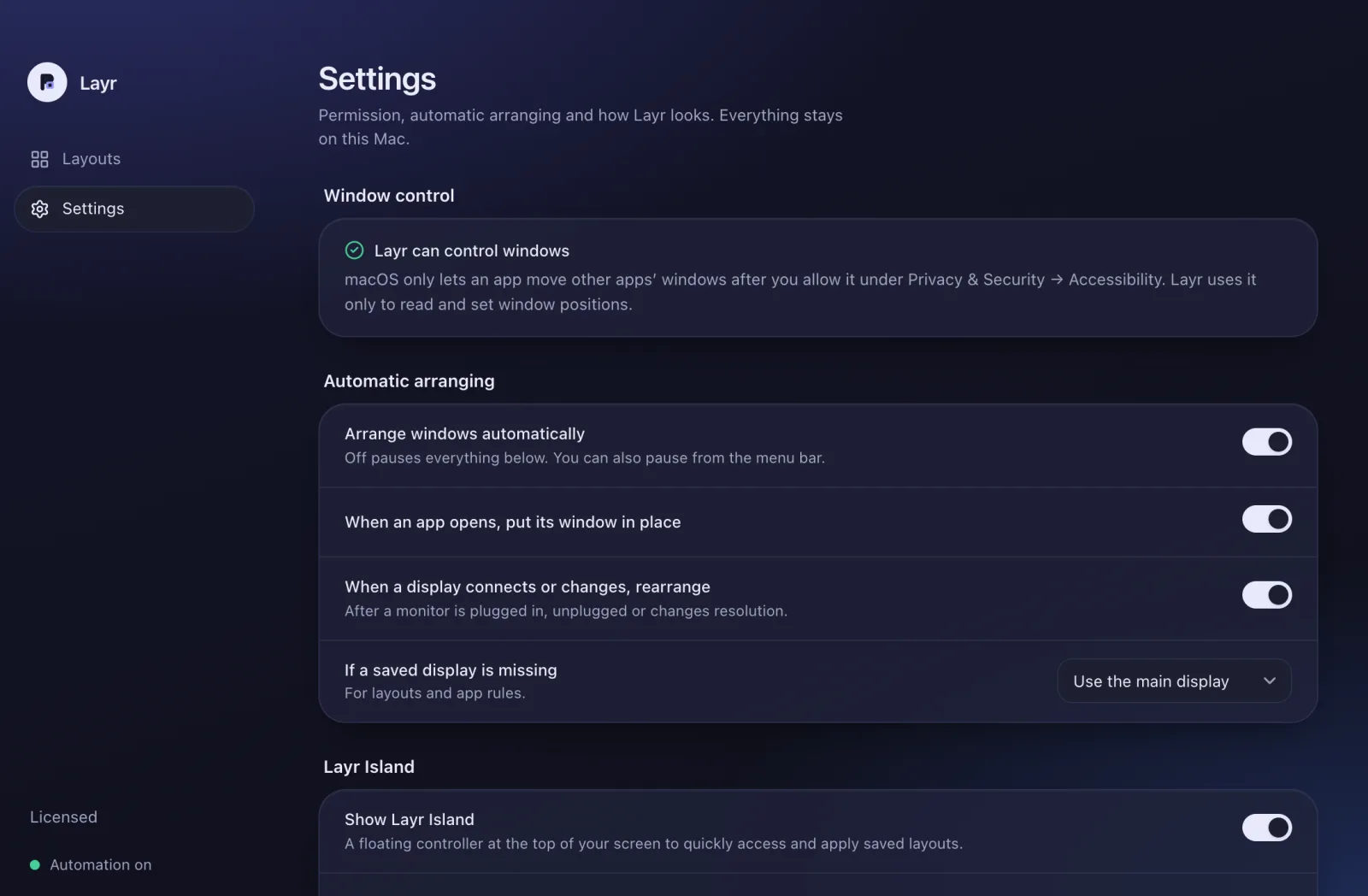
When prompted, open System Settings → Accessibility and enable Layr so it can arrange windows.
How Layr handles Accessibility Permissions
macOS restricts background applications from resizing or repositioning windows unless explicitly granted permission by the user. Layr never modifies system databases or attempts privilege escalations.
- 1.Open Layr and click Ask macOS for permission in Settings.
- 2.System Settings will open to Privacy & Security → Accessibility.
- 3.Toggle the switch next to Layr. Permissions take effect immediately.
Installation Troubleshooting
Encountering an issue during download or initial launch? Here are verified solutions for common macOS security and permission questions.
“Layr can't be opened” or developer warning
Ensure you downloaded the official disk image directly from this page. Release builds are signed with our Apple Developer ID and notarized by Apple. If macOS warns about an unidentified developer, right-click (or Control-click) Layr.app in your Applications folder and select Open.
Windows don't move after an update
macOS ties Accessibility permissions to an application's cryptographic signature. If you previously evaluated an older test build, macOS may cache stale permission tokens. Go to System Settings → Accessibility, remove Layr with the minus (–) button, add it back, and restart Layr.
How do updates work?
Download the new version from this page and replace the copy in Applications. Your saved layouts and rules are kept.
Need more help?
Visit our comprehensive Documentation & Support center for detailed guides on multi-display setup, title matching, and license deactivation.
Want to inspect release details?
Read verified release notes, bug fixes, and feature additions across versions.